




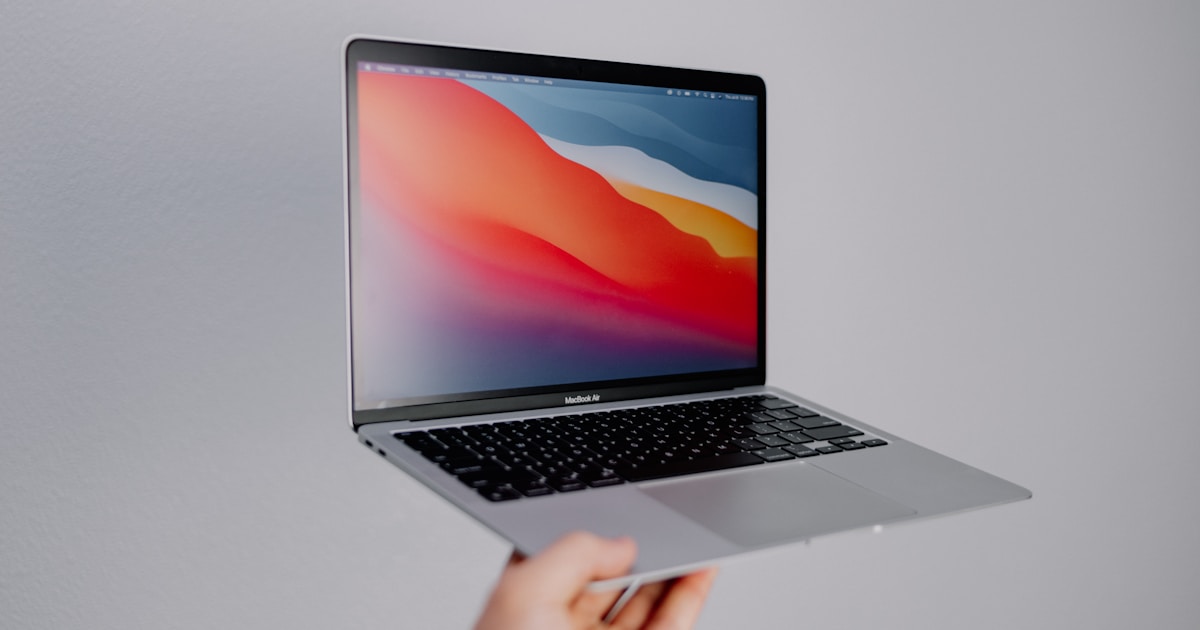
Understanding MacBook Disk Errors
MacBook disk errors can lead to a variety of issues, such as unexpected shutdowns, slow performance, or complete startup failures. These errors are often indicative of problems with the internal storage system, which can include the SSD (Solid State Drive) or its connection to the motherboard. Recognizing the symptoms early on can help in addressing the issue before it escalates.
Common Symptoms of Disk Errors
Symptoms of disk errors in a MacBook may vary, but typically include:
- Frequent system crashes or freezes
- Long boot times or failure to boot
- Error messages regarding disk corruption
- Inability to save or retrieve files
If any of these issues are encountered, it’s advisable to perform a series of user-level checks before considering more complex solutions.
Initial Checks and Safe Solutions
Before assuming the worst, a few basic user-level checks can be performed. Start by verifying your power supply and connections. Ensure your MacBook is receiving adequate power and that all cables and adapters are functioning correctly. If issues persist, try a safe reboot in recovery mode to check the disk using Disk Utility for any detectable issues.
Additionally, observe the device for overheating signs, as these can exacerbate disk errors. Ensure your MacBook has proper ventilation and is free from dust accumulation.
When to Seek Professional Help
If basic checks do not resolve the issue, it may be necessary to consult a professional service center. Advanced diagnostics and repairs, particularly those involving internal components, should be conducted by trained technicians. These repairs often require specialized equipment and expertise not available in a typical user setting.
For instance, components such as the MacBook’s SSD or its interface with the logic board might need evaluation, which is beyond the scope of user-level troubleshooting. MacBook Memory Chip Reballing is an example of a professional service that requires expertise.
Prevention Tips
To minimize the risk of future disk errors, regularly back up your data and avoid exposing your MacBook to extreme temperatures or moisture. Keeping your software up to date can also help prevent software-related disk errors.
Conclusion
MacBook disk errors can be disruptive, but early identification and the right approach to troubleshooting can mitigate the impact. For issues that extend beyond basic checks, professional intervention is recommended to ensure your device is restored to optimal functionality. Remember to keep your backups current and consult with service professionals when necessary to protect your valuable data.